 Folderloom by Knoveya
FOLDERLOOM · ADVANCED SEARCH
Search Inside Your ChatGPT, Claude and Gemini Conversations
Remember the idea, but not the chat title? Search for the words you used and get back to the conversation that matters.
The useful detail is often inside the chat
A title like Marketing ideas tells you very little when you are looking for one decision from last week. You may remember a product name, a customer objection or a phrase from the answer more clearly than the title.
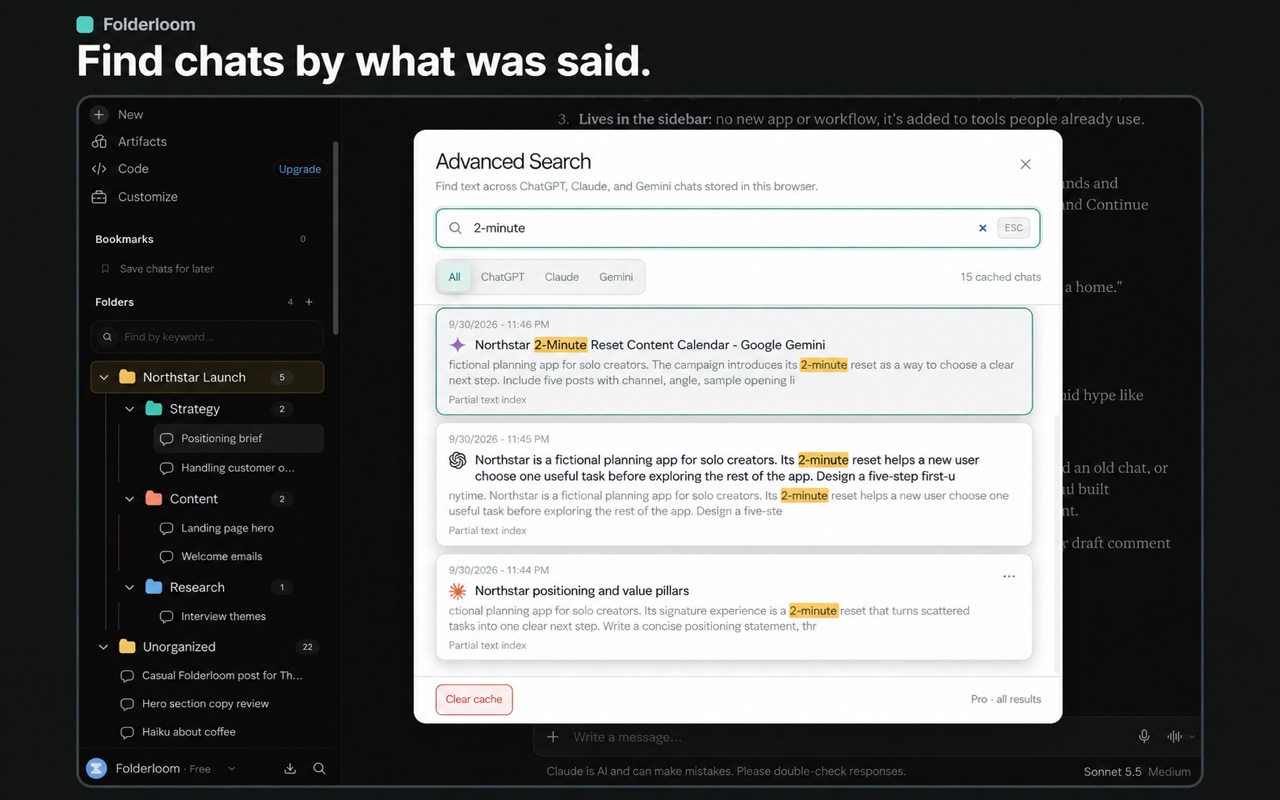
Folderloom Advanced Search checks chat titles and conversation text saved locally when you open a chat. Type the clue you remember, see where it appears and return to the original discussion. Matching words are highlighted in the result so you can scan without opening every chat.
Search across the AI tools you already use
Planning in Claude, writing in ChatGPT and researching in Gemini can leave one project spread across three histories. Advanced Search brings the locally cached text from all three into one search window. Platform icons show where each result came from; filters help narrow the list.
You can search while working in any supported platform. Opening a result from another platform takes you to that chat in a new tab. Each AI still owns its original conversation: searching does not merge histories or move messages between providers.
What gets cached—and what may be missing
Folderloom updates its local search cache as you open conversations and their message text becomes available. A chat you have never opened on this device may not be searchable yet. Older messages that have not loaded, images and attachments may also be missing.
Treat the cache as a useful way to find text you have worked with, rather than a complete backup of your AI accounts. A partial result means Folderloom has only some of the conversation text. If a result has no reliable original-chat link, it can remain searchable but cannot open directly.
Five matching chats on Free. Every match on Pro.
Free lets you open the five newest chats among the results matching your keyword and selected platform filter. This is not limited to your five newest chats overall. Older matching results still appear with blurred details and an option to upgrade.
Pro lets you open every matching result. Folderloom Pro costs $19 USD once, with no subscription, and follows your Google-connected account across devices. The search cache remains local to each device, so Pro access on a second computer does not copy your chat text there.
Your search text stays on your device
Folderloom requires a Knoveya account connected with Google. Its search index lives in Chrome local storage and is separated by that account. Search queries and cached chat text are not sent to Knoveya, Polar or an external search service.
Clear cache in Advanced Search removes the current account’s local search index without deleting your folders, saved prompts or original AI conversations. Like other browser data, local storage can be accessed by someone who has access to your Chrome profile. Keep that profile protected when working with private material.
Use folders for structure and search for the detail
Folders keep a project’s conversations together. Bookmarks give you a short list of discussions you return to often. Advanced Search helps when you know what was said but cannot remember where you put it.
A few clearly named folders and a distinctive search phrase are usually enough to find your way back. Start with a project name or an unusual term, then use the platform filter if the result list is still too broad.
Find a conversation in a few steps
- Connect to Folderloom with Google, then open the conversations you want to make searchable. Folderloom caches the available message text on this device.
- Open the floating menu and choose Advanced Search. On macOS, Cmd + E opens the menu.
- Enter a distinctive word or phrase from the conversation. Search all three supported tools, or filter by ChatGPT, Claude or Gemini.
- Look at the highlighted words in the title and text preview to check the context before opening a result.
- Open the original chat. A result on your current AI platform opens there; a result on another supported platform opens in a new tab.
Start with a phrase you remember
Try: 2-minute

Find the positioning brief in Claude, an onboarding discussion in ChatGPT,
and a content calendar in Gemini that all mention the same idea.