 Folderloom by Knoveya
FOLDERLOOM · CHATGPT FOLDERS
ChatGPT Folders for Projects, Research and Work
Keep useful ChatGPT conversations grouped by project instead of scrolling through one long history.
Why ChatGPT history becomes hard to scan
A ChatGPT history can contain launch notes, research, support replies and quick questions at the same time. The chat title may be the only clue you have, and the useful thread is easy to lose after a busy week.
Folders give recurring work a stable place. Start with broad projects, then add a nested folder when a project becomes crowded.
What Folderloom adds to ChatGPT
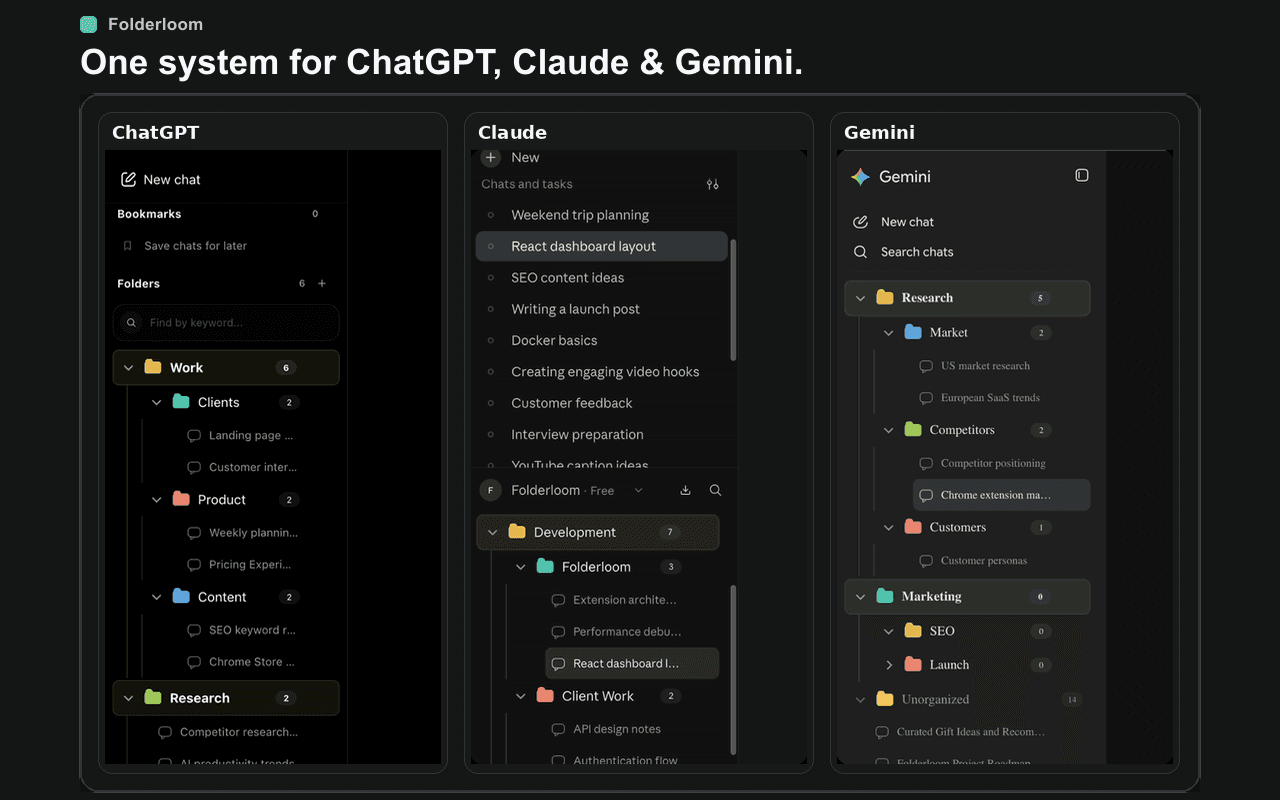
Folderloom adds nested folders, bookmarks, drag and drop, and local search for folder names and chat titles inside ChatGPT. The organization data stays in Chrome on your device.
Use a bookmark for a conversation you revisit often, and search when you remember the title but not the folder.
ChatGPT Projects and folders are different tools
ChatGPT Projects are native spaces for instructions, files and conversations. Folderloom folders are a lightweight organization layer for the chats already visible in your sidebar. Many workflows can use both: keep project context in a Project and use folders to make the broader history easier to scan.
Know what local search can find
Folderloom searches folder names and chat titles available to its organization layer. It is not a full-text index of every message in your ChatGPT account. If the clue you remember is inside a message rather than its title, open the conversation or use ChatGPT's native search.
A folder reference is not a backup of the conversation. Deleting the original chat in ChatGPT can leave a reference that no longer opens. Organization also stays in the current Chrome profile; installing the extension on another device does not create cloud sync.
Try a small organization routine
- Install Folderloom from the Chrome Web Store and open ChatGPT in Chrome. Refresh an already-open ChatGPT tab if the extension has just been installed.
- Create a folder for one active project. Move a few visible sidebar conversations into it with drag and drop or the Move to folder action.
- Add a Research subfolder only when the project needs it. Bookmark the chat containing the decision or draft you expect to reopen.
- Try a word from that chat's title in Folderloom search. Clear the query to return to the folder tree.
- At the end of the week, move finished work into an Archive folder. Keep the active tree small enough to scan.
Example project structure
Client website
  Research
  Copy drafts
  Decisions
Archive