VGLOT · PRACTICAL GUIDE
Translate YouTube videos without subtitles
A useful video does not always have a subtitle track in your language. VGLOT starts with the video audio and puts the original words beside a translation, so you can follow without switching away from YouTube.
By Knoveya · Published · Updated
Get started
- When extension access is available to you, open a public YouTube watch page in Google Chrome. VGLOT is currently accepting Early Access registrations; this guide describes the product workflow, not a public installation offer.
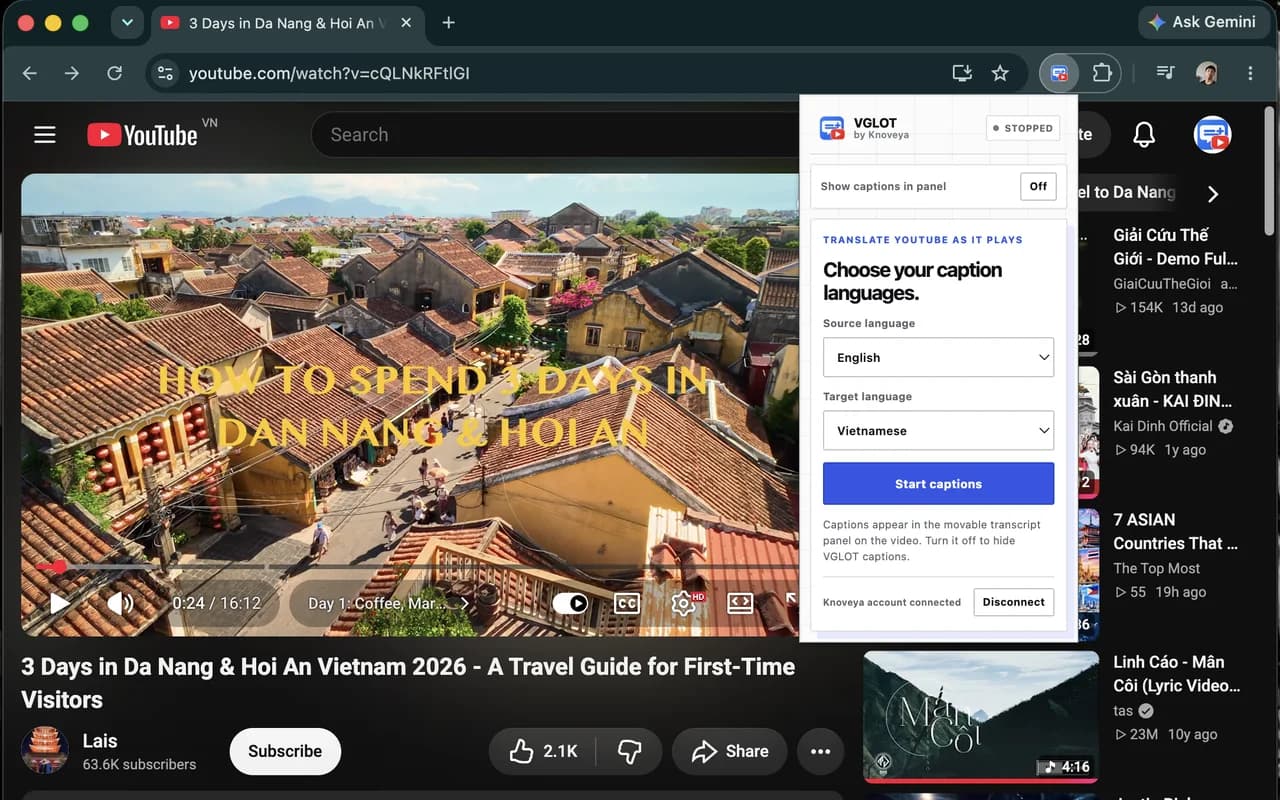
- Open VGLOT from Chrome’s extension bar. Choose the language being spoken as Source and your reading language as Target. Auto detect is available for supported source languages; choose a known source explicitly if detection is inaccurate.
- Play the video and press Start captions. If no prepared transcript is ready for that language pair, VGLOT captures the YouTube tab’s audio for live speech recognition.
- Read the original words and translation in the transcript panel. Drag or resize the panel to keep the important part of the video visible.
- Stop captions when finished. To change languages, choose the new pair in the popup before starting a new session.
What happens when a subtitle track is missing?
VGLOT can create caption text from the audio playing in the YouTube tab. It does not need an existing subtitle track to run live captions. The source caption and translation appear in a separate transcript panel rather than replacing the video with a dubbed audio track.
The workflow is useful for a tutorial, interview or lecture whose speech you can hear but cannot comfortably understand. It does not recover silent speech, text shown only in slides or words hidden by loud music. If the video has a usable native subtitle track, that remains another option to consider.
Expect a delay, and check important wording
Speech recognition and translation need time to process the audio. Words may be revised while a phrase is forming, and translated text may arrive after the speaker has moved on. Live captions are not a promise of instant or perfectly accurate translation.
Names, accents, overlapping speakers and specialist vocabulary can cause mistakes. Compare the original and translated lines, rewind when necessary, and verify important facts against the video or another reliable source. A translation is a reading aid, not an authoritative transcript.
Where the audio and text go
Capture starts after you press Start and uses the active YouTube tab, not your microphone. Live audio goes to Deepgram for speech recognition. Completed caption text is translated through Knoveya and Gemini; this is not processing entirely on your device.
Knoveya does not store raw audio. Live captions are not automatically saved to your Library. A transcript you explicitly request through Prepare synced captions is processed and stored privately in your connected account. Read the privacy page before using material you consider sensitive.
If captions do not appear
Check that the video is playing with audible speech, the source language is correct and your connection is working. A stopped session, exhausted usage allowance or unavailable recognition/translation service can interrupt captions. Retry after resolving the issue; signing in does not guarantee unlimited processing.
This guide covers public YouTube watch pages in Chrome. It does not claim support for every website, private video, device or language. If the problem continues, send a description through VGLOT support without including private transcript content.