VGLOT · PRACTICAL GUIDE
Live captions or prepared synced captions?
Live captions help you start following a video without waiting for a transcript to be prepared. Synced captions help you revisit the video once a timestamped transcript for your language pair is ready.
By Knoveya · Published · Updated
Get started
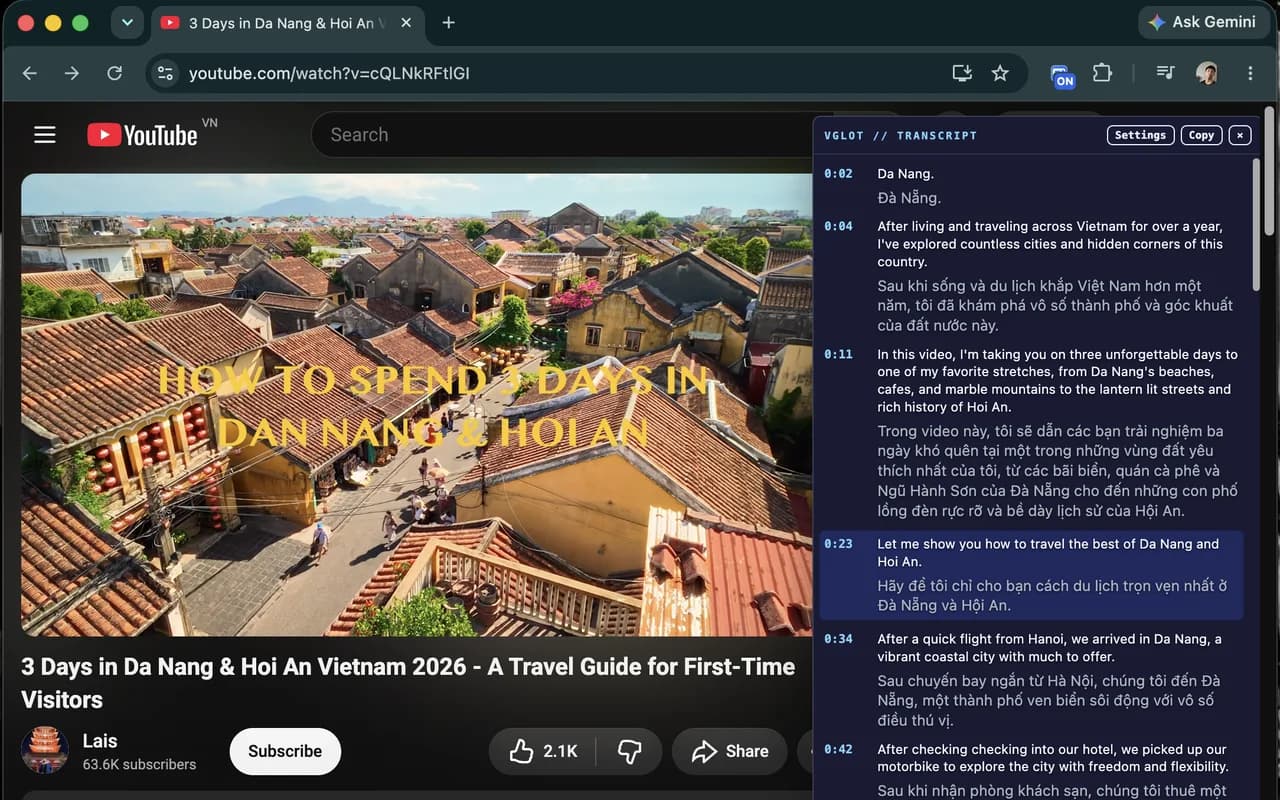
- Open a public YouTube video with VGLOT access, select source and target languages and press Start captions.
- If a prepared transcript for that pair is ready in your connected account, VGLOT uses it. Otherwise it starts live captions from the tab audio.
- For synced captions, connect your account and explicitly choose Prepare synced captions. Preparation requires available processing quota and can take time.
- Continue with live captions while preparation is running. When the selected pair becomes ready, the extension can switch to the synced transcript.
- Try pausing, seeking or changing playback speed. With the ready synced transcript, the active line follows the video position; click a timestamp to revisit that moment.
Live captions process what you are hearing now
When no prepared transcript is ready, VGLOT captures the YouTube tab’s audio after Start. Deepgram recognizes the speech, and Knoveya/Gemini translate completed text. The panel shows caption updates as processing proceeds; recognition and translation introduce a delay.
Live mode does not automatically create a saved transcript of the whole video. It is useful when you want to start watching right away, but it does not offer the same timestamp-based replay behavior as a ready prepared transcript.
Synced captions need preparation first
An explicit preparation request processes the video into source and translated segments with timestamps. Once ready, the extension follows the video’s playback position without opening a new live audio-recognition session for that ready pair.
This lets the panel follow pause, seek and playback-speed changes. It does not guarantee that the transcription or translation is error-free. The benefit is playback alignment and a reusable transcript, not perfect wording or instant preparation.
Account, language pairs and processing quota
Prepared transcripts belong to your connected account and appear in your private Library. A video can have several prepared source/target language pairs. A ready English-to-Vietnamese pair does not automatically provide an English-to-Japanese transcript.
A new pair or a retry after failed preparation reserves processing quota using the full video duration. An existing pair is not charged a second reservation simply because you reopen it. Check the preparation status and available quota before requesting a long video; the guide does not change your entitlement.
Waiting, failure and storage
If preparation is still running or there is no matching ready pair, live captions remain the fallback. A failed job, inaccessible video, provider failure or quota limit can prevent preparation. Live mode also depends on its own available allowance and working external services.
Knoveya does not store raw audio. Preparation uses temporary audio processing and stores the resulting transcript in your private account Library. Live caption text is not automatically saved there. Stop captions when you finish, and review the privacy page before processing sensitive material.
Choose based on how you watch
Start with live captions for a first pass through an unfamiliar talk. Prepare synced captions when you expect to revisit explanations, pause to take notes or jump between parts of a tutorial. Request preparation only for a video you actually need.
VGLOT is currently accepting Early Access registrations. These workflows describe the product; they do not promise public Store availability, a release date or unlimited processing. Use the product page for the current access status.