VGLOT · PRACTICAL GUIDE
Read YouTube captions in two languages
A translation helps you follow the meaning. Keeping the original words nearby helps you check a name, compare a phrase or notice where the translation may need a second look.
By Knoveya · Published · Updated
Get started
- With extension access, open a public YouTube video in Chrome. Choose the spoken Source language and the Target language you want to read in the VGLOT popup.
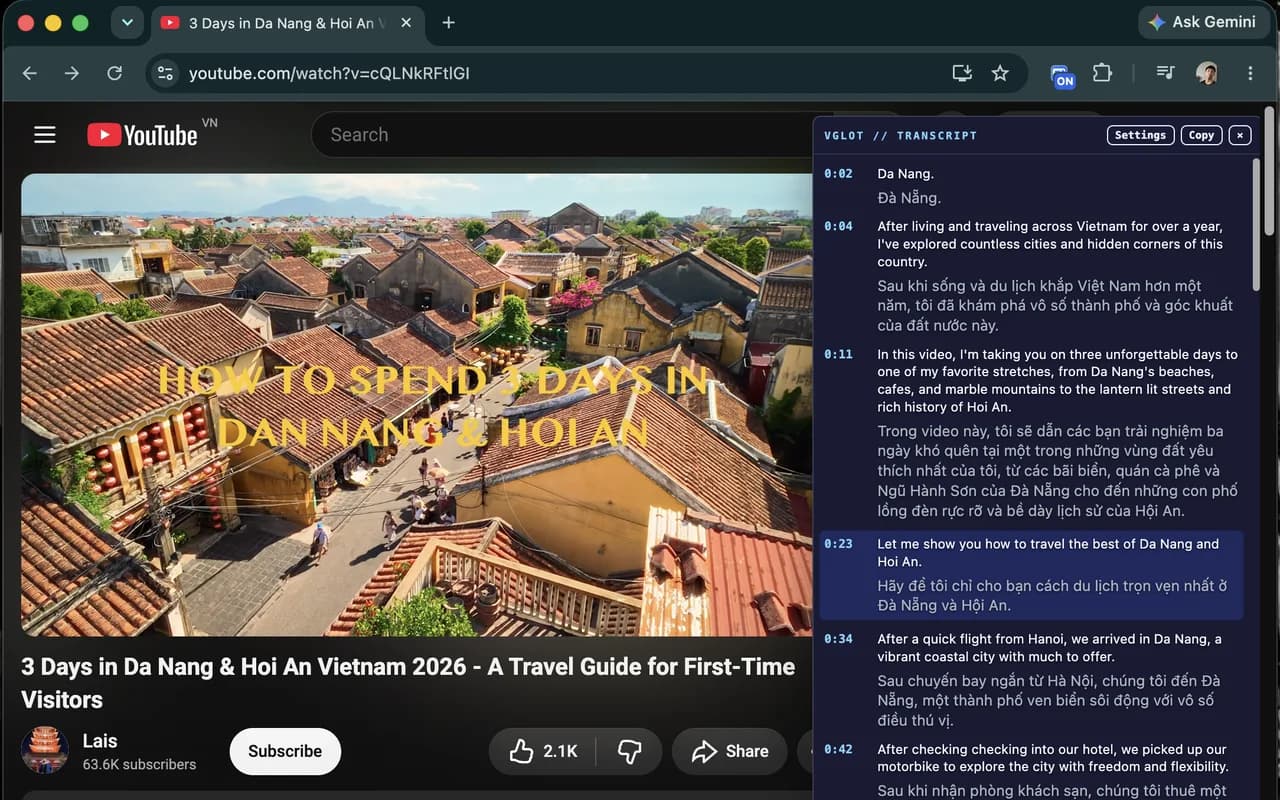
- Press Start captions. Read the original speech and translation together in the panel. Live captions run when there is no ready prepared transcript for that language pair.
- Drag the transcript panel to a comfortable position and resize it to suit the video. Keep slides, demonstrations and faces visible.
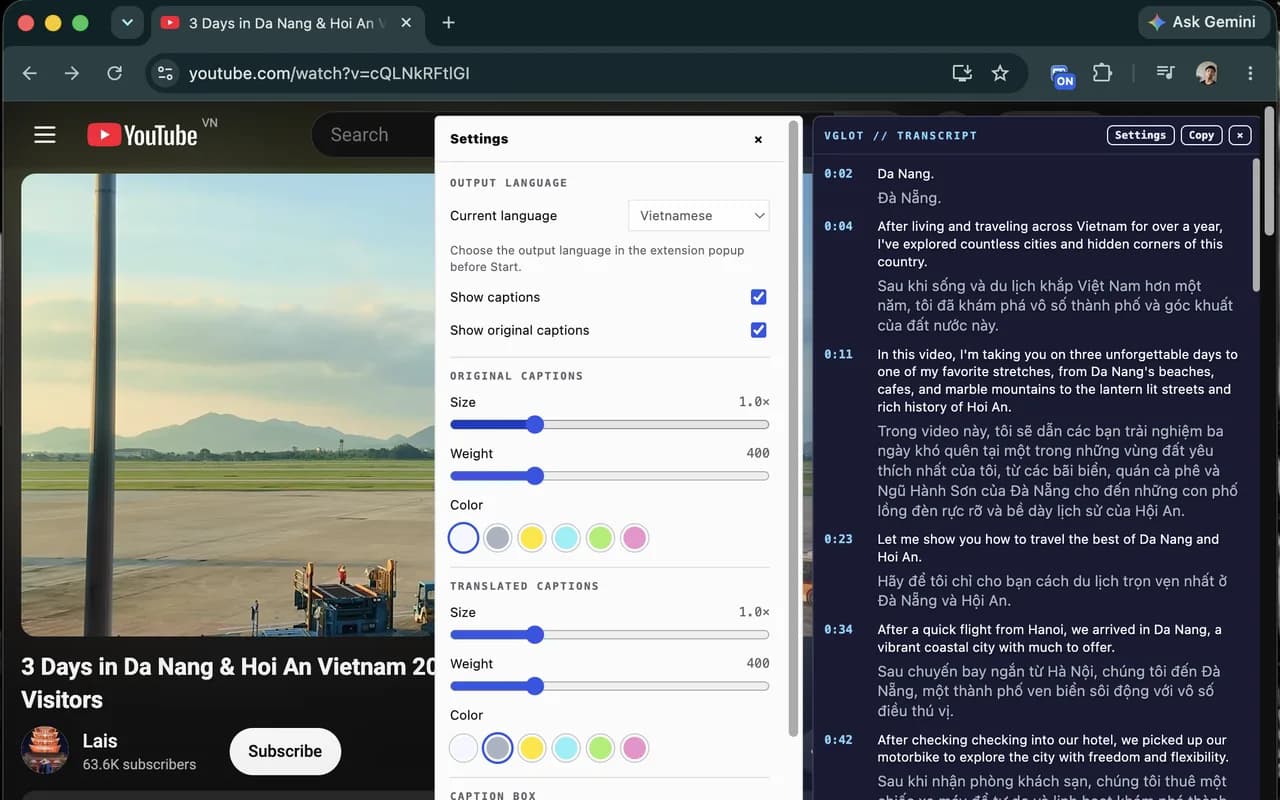
- Open Settings in the panel header. Adjust text appearance and choose whether to show original captions. For a different output language, return to the popup before starting a new session.
- If you need to revisit a timestamp while seeking or pausing, use a prepared synced transcript once processing has completed.
Use the original line as a reference
For a language lesson, compare how one short phrase is expressed in each language. For a technical tutorial, keep product names and specialist terms visible in the original text. You do not need to read every line twice; focus on the wording that matters to your task.
Both recognition and translation can be wrong. The source line is generated caption text, not necessarily a verbatim record verified by the speaker. When the two versions seem inconsistent, replay the audio and check the surrounding context instead of assuming either line is correct.
Make the panel comfortable to read
Settings in the transcript panel let you adjust the size, weight and color of the original and translated text. You can hide the original captions when you only want the translation, choose a panel position and adjust its background and spacing. Reset to defaults restores the appearance settings.
The output language shown in Settings is read-only during a session. Choose source and target languages in the extension popup before Start captions. Appearance preferences stay on your device; they do not upload your caption text or create a cloud transcript.
Try a larger font for a lecture viewed at a distance, or a narrower panel beside a coding demonstration. The aim is to read the words without covering the part of the video you need to watch. The screenshot of Settings shows only part of the available controls.
The same panel, two caption workflows
Live captions follow audio as it is recognized, so new words and translations can arrive with a delay. A prepared synced transcript uses saved timestamps to follow the video’s playback position after processing is ready. It can highlight the current line and let you click a timestamp to revisit a moment.
Prepared captions require a connected account, available processing quota and an explicit request. VGLOT does not prepare every video automatically. Choosing a new language pair may require separate preparation, even when another pair is already ready.
Access and privacy
VGLOT is currently on Early Access. Register on the product page for launch updates; this guide does not promise an immediate installation or a launch date. Supported workflows are public YouTube watch pages in Chrome.
Live audio is sent to Deepgram, and completed text goes through Knoveya and Gemini for translation. Knoveya does not store raw audio. Transcripts are saved to your private Library only when you explicitly request preparation. Review the privacy details for the complete data flow.